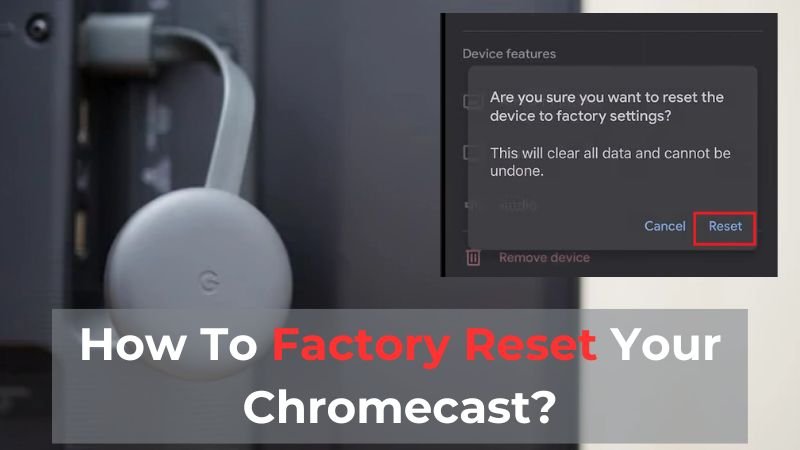
When your Chromecast starts acting up – maybe it's buffering endlessly, refusing to connect, or simply becoming unresponsive – a factory reset often feels like the nuclear option. Perhaps you're even preparing to sell or gift your device, and you need to ensure all your personal data is thoroughly wiped. Whatever the reason, understanding what happens after a Chromecast factory reset, its re-setup process, and the data implications is crucial for a smooth experience.
It’s more than just pressing a button; it’s a full system cleanse, preparing your streaming dongle for a fresh start, whether for you or a new owner.
At a Glance: What You Need to Know
- Data Wipe: A factory reset completely erases all personal data, Wi-Fi networks, account links, and app data from your Chromecast.
- Back to Defaults: Your device returns to the exact state it was in when it first left the factory.
- Re-setup Required: You’ll need to set up your Chromecast again from scratch, just like a new device.
- Connectivity Fix: This process often resolves persistent buffering, connection issues, and general unresponsiveness.
- Methods Vary: You can reset via the Google Home app, a physical button, or through the device's settings on a Chromecast with Google TV.
- Google Account Safe: While your account is removed from the device, your Google account itself remains intact.
Why Reset Your Chromecast? The 'Why' Behind the Wipe
Think of a factory reset as giving your Chromecast a complete brain scrub. It’s often the go-to solution for a variety of stubborn problems that simply restarting or unplugging won't fix.
Common scenarios include:
- Persistent Performance Issues: You’re battling endless buffering, choppy streams, or videos that constantly freeze. A factory reset can clear out corrupt data or glitches causing these woes.
- Connection Catastrophes: Your Chromecast refuses to connect to Wi-Fi, drops its connection frequently, or won't pair with your casting device. Starting fresh often resolves underlying network conflicts.
- Unresponsive Device: The Chromecast isn't showing up in the Google Home app, or it’s simply not responding to any commands. A hard reset can kickstart it back to life.
- Selling or Gifting: This is perhaps the most important reason for a factory reset. To protect your privacy and ensure the next owner doesn't access your accounts, a full wipe is non-negotiable.
- Troubleshooting Last Resort: When all other troubleshooting steps have failed, a factory reset is usually the final, effective solution before considering a replacement.
Understanding the Reset: What Truly Gets Erased
When you initiate a factory reset, you're not just clearing a cache; you're performing a comprehensive data purge. This isn't a temporary fix; it’s a fundamental change to the device’s internal configuration.
Here’s a breakdown of what gets permanently erased from your Chromecast:
- Wi-Fi Network Credentials: Any stored Wi-Fi network names (SSIDs) and passwords are deleted. You'll need to re-enter them during the setup process.
- Google Account Link: Your Google account, which allows your Chromecast to access your personalized settings and services, is unlinked from the device.
- Custom Settings and Preferences: All personalized settings, such as device name, wallpaper preferences (for Chromecast with Google TV), and any accessibility options, are reverted to their default states.
- App Data (Chromecast with Google TV): If you have a Chromecast with Google TV, any installed apps and their associated data (like login information for Netflix, Hulu, YouTube, etc.) are wiped clean. You'll need to reinstall and log into them again.
- Casting History and Data: Any stored casting history or data related to your previous usage is gone.
Essentially, the device will behave as if it’s brand new, straight out of the box, requiring you to configure everything from scratch. This thorough erasure is precisely why a factory reset is so effective for resolving deep-seated issues or preparing the device for a new owner.
Your Options: How to Factory Reset Your Chromecast
The method you choose to reset your Chromecast depends largely on its current state and which model you own. Whether your device is responsive or completely frozen, there’s a way to get it back to its factory defaults. For a deeper dive into the exact steps, you might find our guide on how to factory reset Chromecast particularly helpful.
Method 1: The Google Home App (For the Responsive Device)
This is the easiest method if your Chromecast is connected to Wi-Fi and responsive within the Google Home app.
- Open Google Home: Launch the Google Home app on your Android or iOS device.
- Select Your Chromecast: Tap on the tile representing your Chromecast device from the main screen.
- Access Settings: Tap the gear icon (Settings) in the top-right corner.
- Find Factory Reset: Scroll down the settings menu until you see and select "Factory reset."
- Confirm Action: You'll be prompted to confirm your decision. Tap "Factory reset" again to proceed.
Your Chromecast will then begin the reset process, which typically takes a few minutes.
Method 2: The Physical Button (For the Stubborn or Disconnected)
When your Chromecast isn't responding, can't connect to Wi-Fi, or you don't have access to the Google Home app, the physical reset button is your best friend. The exact location and behavior of the button can vary slightly by generation.
- For Most Chromecast Models (including 3rd gen and older):
- Ensure your Chromecast is powered on and plugged into your TV.
- Locate the small, circular button on the side or back of the Chromecast dongle.
- Press and hold this button firmly.
- Keep holding the button for about 25 seconds. The LED light on the Chromecast will initially blink yellow, then change to blinking white.
- Once the LED light turns solid white (or begins rapidly blinking white), release the button.
- The device will automatically reset and reboot, displaying the initial setup screen on your TV.
- For Older Chromecast Generations (if distinct behavior applies, though general method covers most):
The core process remains similar: press and hold until the LED indicator changes, signifying the reset is underway. Always ensure the device has power throughout this process.
Method 3: Via Chromecast with Google TV Settings (When You Have the TV Interface)
If you have a Chromecast with Google TV and can navigate its on-screen interface, resetting through the system settings is straightforward.
- Access Settings: From the Google TV home screen, navigate to the top-right corner and select your profile icon, then choose "Settings."
- Go to System: Scroll down and select "System."
- About Device: Within the System menu, select "About."
- Initiate Factory Reset: Scroll down and choose "Factory reset."
- Confirm: Confirm the action when prompted.
Your Chromecast with Google TV will then erase all data and reboot to its initial setup screen.
The Fresh Start: What to Expect Immediately After a Reset
Once the factory reset process is complete – which typically takes between 2 to 5 minutes – your Chromecast will reboot. On your TV screen, you'll see the familiar welcome message, prompting you to begin the initial setup. This looks exactly like it did the very first time you plugged in the device.
The device will no longer be linked to your Google account, remember your Wi-Fi network, or have any personalized settings. It's essentially a blank slate, ready for you to configure it anew or hand it off to someone else with full confidence that your data is secure.
Bringing it Back to Life: Re-setting Up Your Chromecast
Now that your Chromecast is sparkling clean, it’s time to set it up again. The process is intuitive and guides you through each step.
Here’s a general rundown of what you’ll do:
- Plug In and Power On: Ensure your Chromecast is plugged into an HDMI port on your TV and connected to its power adapter.
- Open Google Home App: On your smartphone or tablet, download and open the Google Home app if you haven't already. Make sure your phone is connected to the same Wi-Fi network you intend to use for your Chromecast.
- Detect Device: The Google Home app should automatically detect a new Chromecast device nearby that needs setting up. Tap "Set up new devices" or the "plus" icon (+) at the top-left, then "Set up device," and follow the prompts for "New device."
- Confirm Pairing: The app will guide you to confirm a code displayed on your TV matches the one on your phone, ensuring you’re setting up the correct device.
- Assign Location & Name: Choose a "home" for your device (e.g., "Living Room") and give it a unique name.
- Connect to Wi-Fi: Select your desired Wi-Fi network and enter the password. This is a critical step, so double-check the network name and password to avoid connectivity issues.
- Link Google Account: Connect your Google account to the Chromecast. This enables personalized recommendations and access to your linked services.
- Install Apps & Services (Chromecast with Google TV): If you have a Chromecast with Google TV, you’ll be prompted to install popular streaming apps and link your streaming service subscriptions (e.g., Netflix, Disney+, YouTube). You’ll need to log into each app individually.
- Complete Setup: Follow any remaining on-screen prompts in the Google Home app to finalize the setup.
Once complete, your Chromecast will be ready to stream content once more! Remember, you'll need to reconnect any specific streaming services by logging into their respective apps, whether on the Chromecast with Google TV interface or through their casting functionality on your phone.
Common Pitfalls and How to Dodge Them
A factory reset and subsequent re-setup are generally straightforward, but a few common mistakes can trip you up.
- Not Confirming the Reset Prompt: When using the Google Home app or the Chromecast with Google TV settings, you'll typically get a "Are you sure?" prompt. Failing to confirm will mean the reset doesn't happen.
- Releasing the Physical Button Too Soon: If you're using the physical button method, patience is key. Releasing the button before the LED indicator changes color (usually to solid white or rapid blinking white) means the reset won't complete. Hold it for the full 25 seconds.
- Insufficient Power: Ensure your Chromecast is properly powered throughout the reset process. If it loses power midway, it could lead to an incomplete reset or other issues.
- Forgetting to Reconnect to Correct Wi-Fi: During re-setup, many people mistakenly connect to a guest network or an outdated Wi-Fi network. Always double-check you're connecting your Chromecast to the same, reliable Wi-Fi network your casting devices will use.
- Skipping Google Account Link: While you can technically skip linking a Google account, doing so severely limits the functionality and personalization of your Chromecast. It's recommended to link one for the full experience.
Frequently Asked Questions (FAQ)
A factory reset can bring up several questions. Here are clear answers to the most common ones:
Will resetting Chromecast delete my Google account?
No, resetting your Chromecast will remove your Google account and all custom settings from the device itself, but it will not delete your actual Google account. Your account remains intact and accessible on other devices.
Can I reset Chromecast without Wi-Fi?
Yes, you can reset your Chromecast without Wi-Fi by using the physical reset button on the device. This method is specifically designed for situations where the device is unresponsive or disconnected from your network.
Why is my Chromecast not resetting?
If your Chromecast isn't resetting, you might not be holding the physical reset button long enough (ensure you hold it for about 25 seconds until the LED changes). Alternatively, the device might not have sufficient power, so check its power connection.
Does factory reset remove casting issues?
In most cases, yes, a factory reset helps fix casting and connectivity problems. It clears out any corrupt data, software glitches, or misconfigurations that might be causing these issues, giving the device a clean slate.
How long does a factory reset take?
The actual factory reset process usually takes a relatively short time, typically between 2 to 5 minutes, after which the device will reboot to its initial setup screen.
Beyond the Reset: Maximizing Your Chromecast Experience
A factory reset is a powerful tool for troubleshooting and data security. Once you've navigated the reset and re-setup, you've essentially given your Chromecast a new lease on life.
Take this opportunity to ensure your Wi-Fi network is robust, your device firmware is up to date, and you've installed only the apps you truly use (especially for Chromecast with Google TV). By understanding the full implications of a factory reset and following the re-setup steps carefully, you can confidently resolve problems and maintain control over your streaming experience. Your Chromecast, now wiped clean, is ready to once again transform your TV into a smart entertainment hub.