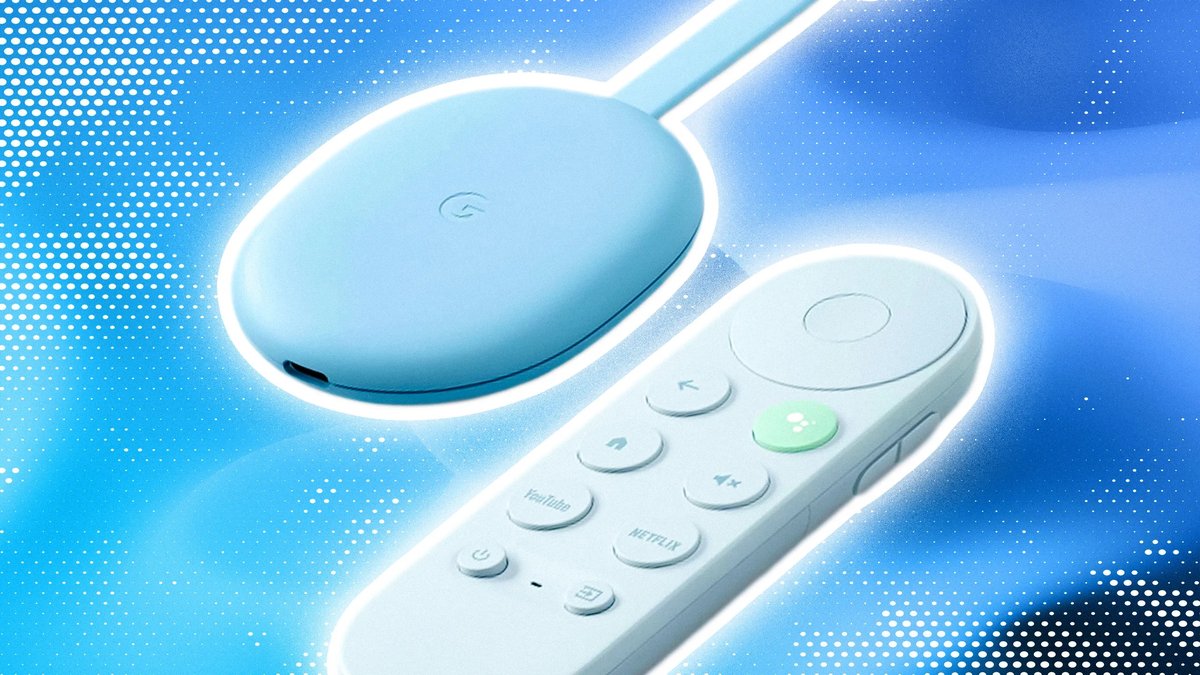
So, your Chromecast is acting up. Maybe it's constantly buffering, refusing to connect to Wi-Fi, or simply frozen on a black screen. Your immediate thought might be to factory reset it – a digital palate cleanser for your streaming device. But what happens when that reset process itself throws a wrench in the works? Navigating the intricacies of troubleshooting common issues during a Chromecast factory reset can feel like tackling a puzzle mid-stream. Don't worry, you're not alone, and we're here to guide you through every flicker, freeze, and unexpected reboot.
This guide isn't just about the steps to reset; it's about what to do when those steps don't go as planned, ensuring you can get back to your binge-watching without the headache. We'll dive into the whys and hows, equip you with proactive tips, and arm you with solutions for those frustrating moments when your Chromecast simply won't cooperate with a reset.
At a Glance: Your Troubleshooting Toolkit
- When in doubt, power cycle: Unplugging your Chromecast (and even your router) is often the first, best step for any glitch.
- Know your reset methods: Google Home app for a responsive device, manual button for a stubborn one.
- Patience with the LED: During a manual reset, the LED light's behavior is your crucial indicator. Don't release the button until it's solid white.
- Stable power is non-negotiable: Never unplug your Chromecast mid-reset to avoid bricking it.
- Post-reset isn't always smooth: Be prepared to re-setup Wi-Fi and your Google account. Have credentials handy.
- When all else fails: Google Support is there for hardware failures or persistent software issues.
Why a Factory Reset? More Than Just a "Fix-All"
Before we troubleshoot a reset, let's quickly underscore why you're even considering one. A factory reset isn't just a random act; it's a powerful diagnostic and restorative tool. Think of it as hitting the "reboot to factory settings" button, erasing all user data and returning your device to its original, out-of-the-box state.
People commonly initiate a factory reset for several key reasons:
- Squashing Stubborn Connectivity Issues: Persistent Wi-Fi disconnections, inability to connect, or endless buffering often stem from corrupted network settings or software conflicts. A reset clears this slate.
- Banishing Software Glitches: Is your Chromecast freezing, unexpectedly rebooting, or displaying erratic behavior? A fresh installation of the operating system can resolve deep-seated software bugs.
- Preparing for a New Chapter: Selling your Chromecast, giving it away, or moving it to a new home (with a new network) necessitates a reset. This safeguards your personal Google account information and network credentials.
- Pinpointing App-Related Problems: If you suspect an app is causing issues, a factory reset helps determine if the problem lies with the app itself or the core Chromecast system.
- Stabilizing Post-Firmware Update Woes: While a reset generally reinstalls the current firmware version, rather than rolling back to an older one, it can sometimes stabilize a device that's behaving poorly after a recent update by ensuring a clean install.
Understanding these motivations helps frame the importance of a successful reset. It's not just about convenience; it's about restoring functionality and privacy. If you're looking for a detailed walkthrough on the standard reset process, you can find a comprehensive guide on how to factory reset Chromecast.
The Two Paths to a Clean Slate: Choosing Your Reset Method
There are two primary ways to factory reset your Chromecast, each suited for different scenarios. Knowing which method to use is your first step in avoiding common troubleshooting headaches.
Method 1: The Google Home App (When Your Chromecast is Cooperative)
This is the preferred method if your Chromecast is responsive, connected to your Wi-Fi network, and generally behaving well enough to be recognized by the Google Home app on your smartphone or tablet.
- Launch the Google Home App: Open the app on your mobile device.
- Select Your Chromecast: Tap on the tile for the specific Chromecast device you wish to reset.
- Access Settings: In the top-right corner, tap the Settings gear icon.
- Find the Menu: Look for the three vertical dots (menu icon), usually in the top-right corner. Tap it.
- Initiate Reset: Select “Factory reset.”
- Confirm: You’ll be asked to confirm. Tap “Factory reset” again to begin.
Your Chromecast will then restart, wipe its data, and boot up to the initial setup screen. This method is generally the most straightforward, assuming your device isn't completely unresponsive.
Method 2: The Manual Button Approach (When It's Stubborn)
Sometimes, your Chromecast is so frozen, disconnected, or generally belligerent that the Google Home app simply won't see it or interact with it. This is where the manual reset button comes in. This method bypasses the need for Wi-Fi or app connectivity.
- Ensure Power: Confirm your Chromecast is plugged into both a power source (wall adapter, not just a TV USB port for stability) and your TV.
- Locate the Button: Find the small physical button on your Chromecast device. Its location varies slightly by model (it might be on the side, back, or top).
- Press and Hold: Press and hold this button down firmly.
- Observe the LED: The LED light on the Chromecast will begin to flash orange.
- Continue Holding: Do not release the button. Keep holding it until the LED light turns solid white. This usually takes around 25 seconds.
- Release: Once the LED is solid white, release the button. The reset process will commence, and the device will automatically reboot to its initial setup screen.
This manual method is often your fallback when the app isn't an option.
What Really Happens When You Hit Reset? A Deeper Look
Understanding the mechanics of a factory reset can help demystify the process and highlight why certain troubleshooting steps are so critical. When you initiate a reset, you're triggering a series of events:
- Data Erasure: All personal data is purged. This includes your linked Google account, all saved Wi-Fi passwords, personalized settings (like device name or wallpaper), and any specific parental control configurations. It's a clean wipe for privacy and performance.
- Software Reinstallation: The Chromecast's operating system (firmware) is effectively reinstalled to its original factory state. This is why it can fix software glitches, as it replaces any corrupted files.
- Device Reboot: The Chromecast automatically restarts. This isn't just a simple power cycle; it's a complete system reboot following the software reinstallation.
- Initial Setup Required: Upon reboot, your Chromecast will present you with the same "Welcome" screen you saw when you first unboxed it. It will require you to go through the entire setup process again, connecting to Wi-Fi, linking a Google account, and configuring settings.
This complete overhaul is what makes a factory reset such a powerful troubleshooting tool, but also why careful attention during the process is essential.
Common Pitfalls to Dodge During a Chromecast Factory Reset
Even a seemingly simple process can go awry if you're not careful. Avoiding these common mistakes can save you a lot of headache during and after your Chromecast factory reset:
- Unplugging During the Reset: This is the cardinal sin of device resets. Never, ever unplug your Chromecast from its power source while the reset is in progress. Doing so can corrupt the firmware, potentially "bricking" your device and rendering it unusable. Wait for the process to complete and for the device to show the initial setup screen.
- Releasing the Button Too Early (Manual Method): When performing a manual reset, the duration of holding the button and the LED feedback are critical. If you release the button before the LED light turns solid white (after flashing orange for about 25 seconds), the reset won't complete successfully. The device needs that full duration to register the command.
- Forgetting Google Account Credentials: After a successful reset, you'll need to link your Chromecast to a Google account again. If you've forgotten the username or password for the account previously linked (or the one you intend to link), you'll hit a roadblock during the re-setup phase. Make sure these are accessible before you start.
By being mindful of these pitfalls, you significantly increase the chances of a smooth, successful factory reset.
Troubleshooting When the Reset Itself Goes Sideways
Sometimes, the troubleshooting process needs troubleshooting. Here are solutions for the most common issues you might face when attempting a Chromecast factory reset or immediately after.
"My Chromecast Won't Reset via the App!"
You open the Google Home app, tap on your device, but the option to factory reset isn't there, or the device isn't showing up at all. This usually means your Chromecast is too disconnected or unresponsive for the app to communicate with it.
- The Fix: If your Chromecast isn't showing in the Google Home app for reset, the solution is simple: use the manual button method. The app relies on your Chromecast being connected to the same Wi-Fi network and being generally responsive. If it's not, the physical button is your direct line to the device's reset functions, bypassing network dependency. Ensure you follow the steps for the manual button method precisely.
- Pro Tip: Before resorting to the button, try restarting your Wi-Fi router and then rebooting your Chromecast by unplugging it for 30 seconds and plugging it back in. Sometimes a simple network refresh is all it needs to reconnect to the app.
"The LED Light Isn't Cooperating During Manual Reset!"
You're holding the button, but the LED isn't flashing, or it never turns solid white. This is a common point of frustration for users performing a manual reset.
- The Fix: If your Chromecast LED light isn't turning white as expected, first verify the power source. Ensure your Chromecast is plugged into a wall outlet using its original power adapter (or one with sufficient wattage). Connecting it directly to a TV's USB port might not provide enough stable power for the reset process.
- Second Attempt: Unplug the Chromecast entirely, wait for about 30 seconds, and then plug it back in. Immediately attempt the manual button reset again, making sure to press the button firmly and hold it continuously until the LED goes solid white.
- Check the Button: Is the button physically stuck or damaged? While rare, a faulty button could prevent the reset command from registering. If you suspect this, you might need to contact Google support.
"It Reset, But Now It's Stuck/Bricked!"
This is perhaps the most worrying scenario: you've performed the reset, but now your Chromecast is stuck on a logo, constantly rebooting, showing no signal, or appears completely unresponsive ("bricked").
- Chromecast Stuck on Logo: If your Chromecast is stuck on the logo after a factory reset, first try a simple power cycle. Unplug it for a full minute, then plug it back in. Sometimes, the initial boot-up after a reset can be a bit sluggish. If it persists, try plugging it into a different HDMI port on your TV, or even a different TV if possible, to rule out port or TV compatibility issues.
- Chromecast Keeps Rebooting: When your Chromecast keeps rebooting after factory reset, it often indicates a deeper software corruption or even a hardware fault. Again, a power cycle is the first step. If the problem continues, it might be stuck in a boot loop. Unfortunately, user intervention for this specific issue is limited beyond ensuring stable power.
- Chromecast No Signal After Reset: Seeing a "no signal" message when your Chromecast shows no signal after factory reset means your TV isn't detecting input from the device. Confirm it's securely plugged into both power and an HDMI port. Try a different HDMI port. Ensure your TV is on the correct input source. If you have another TV, test the Chromecast there to isolate the problem.
- Chromecast "Bricked" After Reset: A "bricked" Chromecast is one that's completely unresponsive – no LED activity, no display, nothing. This usually happens if power was interrupted during the firmware reinstallation. If your Chromecast appears bricked after a factory reset, your options are limited to ensuring stable power and re-attempting a power cycle. If it remains unresponsive, it's likely a hardware failure, and you'll need to contact Google support.
"I Reset It, But Now Wi-Fi Won't Connect!"
Successfully reset but now your Chromecast is refusing to join your Wi-Fi network, leaving you unable to complete the setup. This is a common post-reset hurdle.
- The Fix: If your Chromecast won't connect to Wi-Fi after factory reset, the first step is always to restart your Wi-Fi router. Unplug it for 30 seconds, then plug it back in and wait for it to fully boot up (usually 1-2 minutes).
- Network Band: Remember that many older Chromecast models (and even some newer ones, for initial setup) prefer or only support 2.4 GHz Wi-Fi networks. Ensure your router broadcasts a 2.4 GHz signal and that your phone is temporarily connected to it during the setup process. Sometimes, having your phone on a 5 GHz network can confuse the Chromecast during initial discovery.
- Password Check: Double-check your Wi-Fi password. It's easy to mistype!
- Router Settings: Briefly check your router's settings. Ensure AP Isolation/Client Isolation is disabled, as this can prevent devices on your network from communicating with each Chromecast.
- Distance: Move your Chromecast closer to your Wi-Fi router if possible, especially during setup, to rule out signal strength issues.
After the Reset: Re-setup Essentials
Once your Chromecast has successfully reset and is displaying the initial "Welcome" screen, you're not quite done. You'll need to go through the setup process again, which involves:
- Opening the Google Home App: Your phone or tablet will once again be your command center.
- Adding a New Device: The app should detect your "new" Chromecast nearby and prompt you to set it up.
- Connecting to Wi-Fi: You'll select your Wi-Fi network and enter its password. This is where having your network credentials handy becomes crucial.
- Linking Your Google Account: You'll link your personal Google account to the Chromecast for personalized features and app access.
- Naming Your Device: Give your Chromecast a descriptive name (e.g., "Living Room TV") for easy identification.
This re-setup is a fresh start and vital for getting your Chromecast back to full functionality.
Beyond the Reset: When to Call for Backup
While a factory reset can solve a multitude of software-related problems, it's not a magic bullet for everything. There are times when persistent issues indicate a deeper problem.
- Repeated Failures: If your Chromecast consistently fails to reset, gets stuck in a boot loop, or immediately exhibits the same issues even after multiple successful resets and re-setups, it might be pointing to a hardware malfunction.
- Physical Damage: Any visible signs of physical damage (e.g., bent HDMI connector, cracked casing) could explain unexpected behavior.
- No LED Activity: If your Chromecast shows absolutely no signs of life – no LED light, no display on the TV – despite being connected to a stable power source, it's likely "bricked" or experiencing a complete hardware failure.
In these scenarios, your best course of action is to contact Google Support. They can help diagnose hardware issues, check warranty status, and guide you through potential replacement options. Don't waste endless hours troubleshooting a device that may have reached the end of its functional life.
Quick Answers to Your Burning Chromecast Reset Questions
Got more questions about the factory reset process? We’ve got quick, authoritative answers to clarify common concerns and misconceptions.
Does a factory reset delete my Google account?
No, a factory reset does not delete your Google account. It merely removes the link to your Google account from the Chromecast device itself. Your Google account, and all its data, remain intact and accessible elsewhere.
Can a factory reset improve my Chromecast's performance?
Yes, it can significantly improve performance if the issues stem from software glitches, corrupted data, or accumulated settings. By providing a clean slate, it often resolves lagging, freezing, or buffering problems.
How long does a factory reset typically take?
The actual reset process usually takes only a few minutes. The re-setup, however, will add a bit more time as you re-connect to Wi-Fi and link your Google account.
Is a Wi-Fi connection required to perform the reset?
A Wi-Fi connection is not required to perform the reset using the manual button method. However, a Wi-Fi connection is essential for the initial setup process after the reset is complete, as you'll need to re-connect to your home network.
Does a factory reset revert firmware to an older version?
Generally, no. A factory reset typically reinstalls the current version of the firmware that the device was last running, rather than reverting to an older version. It essentially gives you a clean install of the existing software.
Can I remotely factory reset my Chromecast if I'm not home?
No, you cannot remotely factory reset a Chromecast if you are not on the same local network as the device. The Google Home app requires local network access to communicate with and command the Chromecast.
What happens to parental control settings after a factory reset?
A factory reset will remove all parental control settings, including content restrictions and downtime schedules, as these are considered part of the user data. You will need to re-establish them during the new setup process via the Google Home app.
What's the risk of damaging my Chromecast during a reset?
The risk of damaging your Chromecast during a factory reset is very low, provided you follow the instructions carefully and maintain a stable power source. The primary risk comes from unplugging the device while it's actively reinstalling firmware.
Final Thoughts: Empowering Your Streaming Experience
A factory reset, while sometimes a necessary evil, is ultimately a tool designed to bring your Chromecast back to peak performance. By understanding the reasons behind a reset, mastering the two methods, and being prepared to troubleshoot common issues along the way, you empower yourself to resolve many of the frustrating problems that can arise with any smart device.
Remember, patience and careful adherence to instructions are your best allies. With this comprehensive guide, you're now equipped to tackle most troubleshooting common issues during a Chromecast factory reset, ensuring your streaming adventures remain uninterrupted and enjoyable. Happy casting!