Chromecast acting up? Lagging, refusing to connect, or just feeling sluggish? Sometimes, the best solution is a clean slate. A factory reset can breathe new life into your streaming device, resolving pesky technical issues, improving performance, and ensuring your personal data is thoroughly wiped clean, whether you're selling it or simply starting fresh.
This comprehensive guide offers the definitive step-by-step guides for factory resetting all Chromecast models, from the latest Chromecast with Google TV to the trusty 2nd Generation. We’ll walk you through each process with clarity, confidence, and the practical advice you need to get your device back in prime streaming shape.
At a Glance: Why and How to Reset Your Chromecast
Before we dive into the specifics, here's a quick overview of why a factory reset might be on your to-do list and the primary methods you'll use:
- Why Reset? To fix glitches, boost performance, or securely erase personal data before gifting or selling.
- Chromecast with Google TV: You'll primarily use either your voice remote to navigate through settings or a physical button press on the device itself.
- Chromecast Ultra, 3rd, and 2nd Generation: The Google Home app is your go-to for these models, though a direct button press on the device is also an option.
- Crucial Tip: Always ensure your Chromecast remains powered throughout the entire reset process to prevent damage.
Why a Factory Reset is Your Chromecast's Best Friend (and Yours)
Think of a factory reset like giving your Chromecast a deep clean and a fresh start. Over time, all electronic devices can accumulate software glitches, cached data, and configuration conflicts that slow them down or cause erratic behavior. A factory reset addresses these issues head-on.
Here’s why you might be considering one:
- Troubleshooting Persistent Issues: Is your Chromecast freezing, randomly disconnecting from Wi-Fi, or refusing to cast? A reset often resolves these stubborn problems that simple reboots can’t fix. It clears all temporary data and user settings, returning the device to its out-of-the-box state.
- Boosting Performance: If your Chromecast feels sluggish, takes forever to load apps, or frequently buffers, a factory reset can help restore its original speed and responsiveness. It removes all installed apps and their associated data, giving the device a much-needed performance uplift.
- Wiping Personal Data: This is crucial if you're planning to sell, give away, or even return your Chromecast. A factory reset completely erases all your personal information, connected accounts (like Google accounts), Wi-Fi passwords, and app data from the device. This ensures your privacy and prevents unintended access to your streaming habits or sensitive login details. It's the digital equivalent of moving out and leaving no trace behind.
- Starting Fresh with a New Network or Owner: Perhaps you've moved, changed your Wi-Fi network, or want to set up the Chromecast for someone else. A factory reset allows for a completely fresh setup process, making it easier to connect to new networks and associate with different Google accounts without old configurations getting in the way.
While a simple reboot can sometimes solve minor issues, a full factory reset is the nuclear option—and often the most effective—for more significant problems. Understanding how to factory reset Chromecast correctly ensures you harness this power effectively.
Before You Begin: Essential Preparations for a Smooth Reset
A little preparation goes a long way in ensuring your Chromecast factory reset is quick, painless, and successful. Skipping these steps could lead to frustration or, in rare cases, even a bricked device.
1. Keep Your Chromecast Plugged In and Powered On
This is non-negotiable. Your Chromecast must remain plugged into a power source and your TV throughout the entire reset process. If power is interrupted mid-reset, it could corrupt the device's firmware, rendering it unusable. Make sure the power adapter is securely connected and that you won't accidentally unplug it.
2. Ensure Network Access (for App-Based Resets)
If you're using the Google Home app to reset your Chromecast (which is common for older models), your mobile device (phone or tablet) must be on the same Wi-Fi network as your Chromecast. This allows the app to communicate with and control the Chromecast. If your Chromecast is already disconnected from your network or you've changed networks, you might need to use the physical button method instead.
3. Back Up Important Data (If Applicable)
For most Chromecast users, there isn't "data" in the traditional sense to back up, as streaming apps store your progress and preferences in their own cloud accounts. However, if you've sideloaded any apps on a Chromecast with Google TV or have specific settings you want to remember, make a note of them. The reset will wipe everything. Your Google account itself remains safe, but its connection to the Chromecast will be severed.
4. Know Your Chromecast Model
Different Chromecast models have slightly different reset procedures. Identifying your specific model upfront will save you time and ensure you follow the correct steps.
- Chromecast with Google TV: Features a dedicated remote and a more app-centric interface. The device itself is often more oval-shaped.
- Chromecast Ultra: Similar puck-like design to older models, but supports 4K streaming and has an Ethernet port on the power adapter.
- Chromecast 3rd Generation: The most recent "puck" style Chromecast, slightly improved over the 2nd Gen, often with a matte finish.
- Chromecast 2nd Generation: The original "puck" design, easily identifiable by its circular shape and flexible HDMI cable.
Armed with this knowledge, you're ready to proceed with confidence.
Method 1: Factory Resetting Chromecast with Google TV
The latest iteration of Chromecast, the Chromecast with Google TV, offers a more integrated smart TV experience. Consequently, its reset procedures can be initiated either through its intuitive on-screen menu or via a direct button press on the device itself.
Option A: Using Your Voice Remote and On-Screen Menu
This is generally the preferred method if your Chromecast with Google TV is responsive and you can navigate its interface. It's clean, straightforward, and doesn't require fumbling around behind your TV.
Step-by-Step Instructions:
- Power On and Navigate: Ensure your Chromecast with Google TV is plugged into your TV and powered on. Grab your voice remote and switch your TV input to the Chromecast.
- Access Settings: From the Google TV home screen, use your remote to navigate to your profile icon. You'll usually find this in the top-right corner of the screen. Select it.
- Enter System Menu: From the profile menu, scroll down and select Settings. This will open a comprehensive menu for your device.
- Find About Section: Within the Settings menu, scroll down the left-hand panel until you find and select System. Then, on the right side, select About.
- Initiate Factory Reset: Inside the About menu, you'll see various device details. Scroll down and select Factory Reset.
- Confirm the Reset: Your Chromecast will display a warning message explaining what a factory reset does. Read it carefully and then select Factory Reset again to confirm.
- Wait for Completion: The device will now begin the reset process. This typically involves a reboot, a Google TV logo, and then a progress bar. Do not unplug the device during this time. It might take several minutes.
- New Setup: Once the reset is complete, your Chromecast will boot up to the initial setup screen, just as it did when you first took it out of the box. You'll need to go through the entire setup process again, connecting to Wi-Fi, logging into your Google account, and installing your preferred apps.
Option B: Directly from the Device (Physical Button Press)
This method is particularly useful if your Chromecast with Google TV is unresponsive, won't boot correctly, or you can't navigate the on-screen menus. It's a hard reset that bypasses the software interface entirely.
Step-by-Step Instructions:
- Ensure Power: Make sure your Chromecast with Google TV is fully powered on and plugged into your TV.
- Locate the Button: On the Chromecast with Google TV device itself, you'll find a small, recessed button (sometimes called the "reset button" or "pairing button"). It's usually located on the side or back, often near the power port.
- Press and Hold: Press and hold this button firmly.
- Observe the Light: As you hold the button, watch the LED indicator light on the Chromecast. It will initially be solid white. After a few seconds (around 10-15 seconds), it will start blinking yellow.
- Release When White: Continue holding the button until the light turns solid white again. This is your cue to release the button.
- Reset Commences: Once you release the button, the Chromecast will immediately begin the factory reset process. The TV screen might go blank, then display the Google TV logo and a progress indicator.
- New Setup: Just like with the remote method, allow the device to complete its reset. It will then restart and present you with the initial setup screens.
Method 2: Factory Resetting Older Chromecast Models (Ultra, 3rd, 2nd Generation)
For Chromecast Ultra, 3rd Generation, and 2nd Generation devices, the Google Home app is often the most convenient way to initiate a factory reset. However, a physical button press on the device remains a reliable alternative, especially if connectivity is an issue.
Option A: Using the Google Home App
This is typically the easiest method if your Chromecast is still connected to your Wi-Fi network and accessible via the Google Home app on your smartphone or tablet.
Step-by-Step Instructions:
- Open Google Home App: Ensure your mobile device is connected to the same Wi-Fi network as your Chromecast. Open the Google Home app.
- Select Your Chromecast: On the app's main screen, you should see a list of your Google Home devices. Find and tap on your Chromecast's tile to open its controls.
- Access Device Settings: In the Chromecast's control screen, look for the Settings icon (it usually looks like a gear or cogwheel) in the top-right corner. Tap it.
- Find Factory Reset Option: Within the device settings, scroll down. You might need to tap on "More" or "…" (three vertical dots) in the top right to reveal additional options. Then, select Factory Reset or "Remove device" which will then offer the factory reset option.
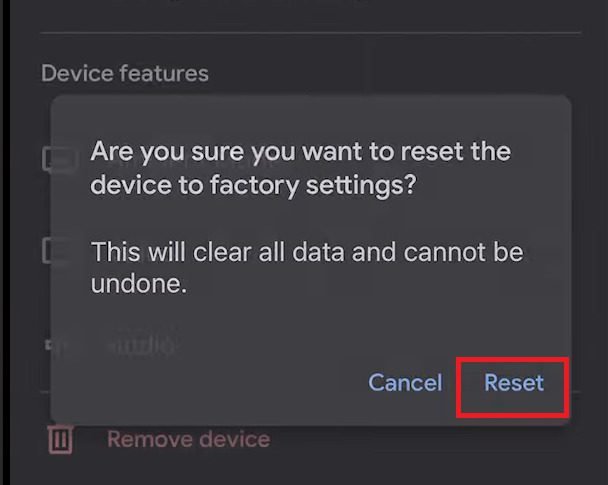
- Confirm Reset: The app will display a confirmation prompt, explaining that the reset will erase all data and settings. Tap Factory Reset or "Reset" to confirm your decision.
- Wait for Completion: The Chromecast will now begin its reset process. The LED light on the device will change colors (often blinking orange), and your TV screen may go blank or show a progress indicator. Do not unplug the Chromecast until the process is fully complete and it reboots to the setup screen.
- New Setup: Once the reset is done, the Chromecast will restart and be ready for a new setup, just like a brand-new device.
Option B: Directly from the Device (Physical Button Press)
This method is the go-to if your Chromecast is unresponsive, you can't connect to it via the Google Home app, or you're having Wi-Fi issues. It's a failsafe hard reset.
Step-by-Step Instructions:
- Ensure Power: Make sure your Chromecast Ultra, 3rd Gen, or 2nd Gen device is plugged into your TV and its power adapter is securely connected and powered.
- Locate the Button: On these puck-shaped Chromecast models, you'll find a single, small, physical button on the side or top of the device.
- Press and Hold: Press and hold this button firmly.
- Observe the Light: While holding the button, observe the LED indicator light on the Chromecast. It will typically be solid white. After about 15-25 seconds, it will start to blink orange rapidly.
- Release When White: Continue holding the button until the light turns solid white. This change from blinking orange to solid white is your signal to release the button.
- Reset Commences: Upon releasing the button, the Chromecast will immediately begin the factory reset sequence. The TV screen connected to the Chromecast might go blank, and the device will restart.
- New Setup: Allow the Chromecast to complete its reset cycle. It will then boot up to the initial setup screen, prompting you to set it up as a new device.
What Happens After the Reset? Your Chromecast Reborn
Once the factory reset process is complete, your Chromecast isn't just "off"—it's back to its original factory state, ready for a fresh start. Here's what you can expect:
- Wiped Clean: All your personal data, linked Google accounts, Wi-Fi credentials, app installations (for Chromecast with Google TV), and custom settings will be erased from the device. It's like it just came out of the box.
- Initial Setup Screen: Your TV screen will display the familiar "Set up your Chromecast" message, often in multiple languages, instructing you to download and open the Google Home app on your mobile device.
- Re-setup Required: You will need to go through the entire setup process again. This involves:
- Connecting to Power: Ensure it's still plugged in.
- Opening Google Home App: On your phone or tablet.
- Discovering the Device: The app should automatically detect your "new" Chromecast nearby.
- Connecting to Wi-Fi: You'll select your home Wi-Fi network and enter the password.
- Linking Google Account: You'll connect your preferred Google account to the Chromecast.
- Installing Apps (Chromecast with Google TV): If you have a Google TV model, you'll be prompted to install your favorite streaming apps.
- Improved Performance: Hopefully, with a clean slate, your Chromecast will now perform faster, more reliably, and free from the issues that prompted the reset.
This re-setup is an opportunity to configure your device exactly how you want it, ensuring optimal performance and privacy from the get-go.
Troubleshooting Common Factory Reset Issues
Even with clear instructions, technology can sometimes throw curveballs. If you encounter an issue during or after your Chromecast factory reset, don't panic. Here are some common problems and their solutions:
1. Chromecast Light Doesn't Change or Get Stuck
- Problem: You're holding the button, but the LED light isn't changing as expected (e.g., stuck on solid white, or not blinking yellow/orange).
- Solution:
- Check Power: Double-check that your Chromecast has a stable power supply. Sometimes, insufficient power can prevent proper functioning. Use the original power adapter if possible.
- Hold Longer: For some units or firmware versions, you might need to hold the button for a bit longer than the stated duration (e.g., 30-45 seconds instead of 15-25).
- Try a Different Outlet: Plug the power adapter into a different wall outlet to rule out a faulty socket.
- Cycle Power: Unplug the Chromecast from both power and the TV, wait 30 seconds, then plug it back in. Wait for it to fully boot up (solid white light) before attempting the button press reset again.
2. TV Screen Remains Blank or Shows "No Signal" After Reset
- Problem: After the reset, your TV isn't displaying the setup screen; it's just blank or showing a "No Signal" message.
- Solution:
- Check HDMI Port: Ensure the Chromecast is securely plugged into the HDMI port on your TV. Try a different HDMI port if available.
- Verify TV Input: Make sure your TV's input source is correctly set to the HDMI port your Chromecast is using.
- Power Cycle TV: Turn off your TV, unplug it for 60 seconds, then plug it back in and turn it on. Sometimes the TV itself needs a refresh.
- Try on Another TV: If possible, test the Chromecast on a different TV to determine if the issue is with the Chromecast or your primary TV.
3. Google Home App Can't Find Chromecast After Reset
- Problem: You've reset the device, but your Google Home app isn't discovering it for the new setup.
- Solution:
- Restart Phone/Tablet: Close the Google Home app completely, restart your mobile device, and then reopen the app.
- Wi-Fi Check: Ensure your mobile device's Wi-Fi is turned on and it's connected to the same network you intend to connect the Chromecast to.
- Bluetooth On: For initial setup, ensure Bluetooth is enabled on your mobile device, as some Chromecast models use it for discovery.
- Bring Closer: Move your mobile device closer to the Chromecast.
- Force-Quit Google Home App: Completely close (force-quit) the Google Home app and reopen it.
4. Reset Process Seems Stuck (e.g., constantly showing Google logo)
- Problem: The Chromecast seems to be in a loop, showing the Google logo or a progress bar indefinitely.
- Solution:
- Patience: Sometimes, the reset process can take longer than expected, especially if there were significant issues. Give it at least 10-15 minutes.
- Hard Power Cycle (Last Resort): If it's been stuck for an unusually long time (e.g., 30 minutes), as a last resort, carefully unplug the Chromecast from power, wait 30 seconds, then plug it back in. This isn't ideal during a firmware operation, but if it's already stuck, it's often the only way to get it to respond. You might need to perform the factory reset again after it boots up.
If you've tried all these troubleshooting steps and your Chromecast still isn't responding or resetting correctly, it might indicate a more serious hardware issue. In such cases, contacting Google Support for potential warranty or replacement options would be the next best step.
When Not to Factory Reset: Alternatives to Consider
While a factory reset is a powerful tool, it's not always the first or only solution. Sometimes, a less drastic measure can fix your issue without the hassle of a full re-setup. Here’s when you might want to pause before hitting the reset button:
- Minor Glitches or Slowdowns: If your Chromecast is just having a temporary hiccup, try a simple reboot first. Unplug the Chromecast from its power source, wait about 30 seconds, then plug it back in. This often clears temporary software bugs and refreshes the connection.
- Wi-Fi Connectivity Issues: If your Chromecast suddenly can't connect to Wi-Fi, check your router first. Rebooting your Wi-Fi router and modem can resolve many network-related problems. Also, ensure your Wi-Fi password hasn't changed. You might be able to update Wi-Fi settings through the Google Home app without a full reset.
- App-Specific Problems: Is only one specific app (e.g., Netflix, YouTube) causing trouble on your Chromecast with Google TV? Try clearing the cache and data for that individual app via the Chromecast's settings (
Settings > Apps > See all apps > [problem app] > Clear cache / Clear data). This targets the problem app without affecting the entire device. - Remote Not Working (Chromecast with Google TV): If your voice remote is unresponsive, check its batteries or try pairing it again via the Chromecast settings (
Settings > Remotes & Accessories > Pair remote or accessory). A factory reset of the Chromecast won't fix a faulty remote.
A factory reset is best reserved for persistent, system-wide issues or when you genuinely need to erase all personal data. Always try the simplest solution first!
Maintaining Your Chromecast's Health: Beyond the Reset Button
Once your Chromecast is reset and streaming beautifully, there are a few practices you can adopt to keep it running smoothly and potentially avoid future resets:
- Stable Power Supply: Always use the original power adapter that came with your Chromecast. Generic or underpowered USB ports on your TV might not provide sufficient, stable power, which can lead to performance issues or instability.
- Optimal Wi-Fi Connection: Ensure your Chromecast is within good range of your Wi-Fi router. Obstacles like walls or other electronics can interfere with the signal. Consider using a 5GHz network if your router supports it and your Chromecast is close, as it generally offers faster speeds with less interference.
- Keep Firmware Updated: Chromecast devices automatically update their firmware in the background. Ensure your device has enough time connected to Wi-Fi to receive these updates, as they often include performance improvements and bug fixes.
- Regular Reboots: Just like a computer or smartphone, a periodic reboot can do wonders. Unplugging your Chromecast from power once a month for a minute or two can clear out temporary data and keep things fresh.
- Manage Apps (Chromecast with Google TV): If you have the Google TV model, occasionally review your installed apps. Uninstall apps you no longer use to free up storage and reduce background processes. Clear app caches for frequently used apps if they start acting up.
- Protect from Overheating: Ensure your Chromecast has adequate ventilation. Don't cover it or place it in a confined space where heat can build up, as overheating can lead to performance degradation or device failure.
By following these simple maintenance tips, you can significantly extend the life and optimize the performance of your Chromecast, making those full factory resets a rare occurrence rather than a frequent necessity.
Frequently Asked Questions About Chromecast Resets
Here are quick answers to some common questions people have about factory resetting their Chromecast:
Q: Will a factory reset remove my Google account from the Chromecast?
A: Yes, absolutely. A factory reset completely unlinks your Google account and erases all personal data, making it safe for a new user or owner.
Q: How long does a Chromecast factory reset take?
A: The reset process itself usually takes between 2 to 5 minutes. The subsequent re-setup process, including connecting to Wi-Fi and setting up your account, can take another 5 to 15 minutes, depending on your model and network speed.
Q: Do I need the internet to factory reset my Chromecast?
A: If you're using the Google Home app to reset, yes, your mobile device needs to be on the same network as the Chromecast. However, using the physical button on the Chromecast device itself does not require an active internet connection on the device, making it ideal for troubleshooting network issues.
Q: What if I don't have the remote for my Chromecast with Google TV? Can I still reset it?
A: Yes! If you don't have the remote, you can use the physical button method directly on the Chromecast with Google TV device to perform a factory reset.
Q: Can a factory reset fix all Chromecast problems?
A: A factory reset can fix most software-related issues, including performance problems, connectivity glitches, and app errors. However, it cannot fix hardware failures or physical damage to the device.
Q: Will a factory reset void my Chromecast's warranty?
A: No, performing a factory reset is a standard troubleshooting step recommended by Google and will not void your warranty.
Empowering Your Streaming Future
You now have the knowledge and the step-by-step instructions to confidently factory reset any Chromecast model. Whether you're troubleshooting a stubborn bug, boosting performance, or securely preparing your device for a new home, this guide equips you with the tools to take control.
Remember, a factory reset is a powerful solution, but it's just one part of keeping your streaming experience smooth and enjoyable. By understanding when and how to use it, along with adopting good maintenance practices, you're set to enjoy countless hours of uninterrupted entertainment with your refreshed Chromecast. Happy streaming!