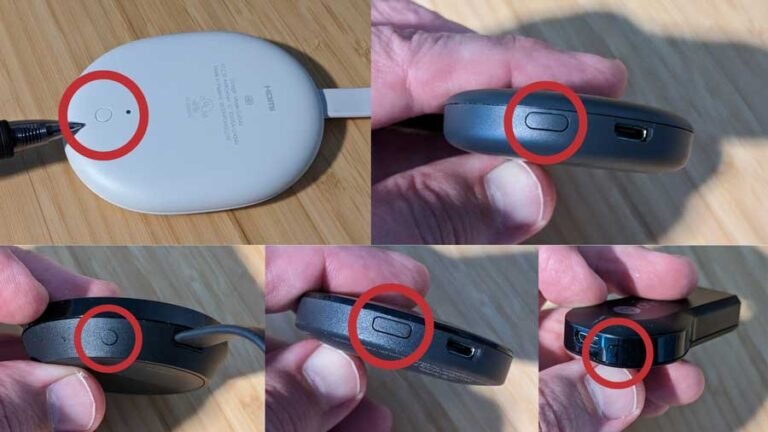
Has your Chromecast been acting up, refusing to connect, or perhaps you're simply ready to pass it on to a new owner? A factory reset is often the perfect solution, breathing new life into your device by returning it to its original, out-of-the-box state. This comprehensive guide will walk you through the big picture of resetting your Chromecast, no matter the model or the situation, linking you to detailed steps for every scenario.
Why Hit the Reset Button? Unlocking Your Chromecast's Potential
A factory reset essentially wipes your Chromecast clean, erasing all personalized settings, cached data, and linked Google accounts. Think of it as giving your device a fresh start. This powerful action is incredibly useful for a variety of reasons, from resolving stubborn technical glitches to preparing it for a move or sale. If you're wondering exactly When and why reset your Chromecast, exploring the full benefits can help you decide if it's the right move for you.
Decoding the Factory Reset: What It Means for Your Chromecast
When you factory reset your Chromecast, you're not just clearing a few settings. You're restoring it to its default configurations, just as it was when you first unboxed it. This process removes any Google account information stored on the device, delinks it from your Google Home setup, and clears any Wi-Fi credentials or personalized preferences. While this sounds significant, it's generally a smooth process. Before you dive in, it’s always good to be prepared and understand what steps you might need to take beforehand. You can find essential tips and information in our guide on Preparing Your Chromecast for a reset.
Three Pathways to a Fresh Start: How to Factory Reset Your Chromecast
The beauty of Chromecast is its versatility, and that extends to its reset options. Depending on your Chromecast model and whether you have access to the device itself or prefer to use an app, there are three primary methods to perform a factory reset. We'll outline each here, and for step-by-step instructions for every model, including specific timing and visual cues, make sure to check out our in-depth guide on How to factory reset Chromecast Factory.
Method 1: The Physical Button (Hard Reset)
This is often the quickest and most straightforward method, especially if your Chromecast isn't responding or you don't have access to the Google Home app. It's a reliable "hard reset" that works across most Chromecast models.
- Ensure Power: Your Chromecast must be plugged into a power source, though it doesn't need to be connected to a TV. Look for the LED light to confirm it's powered on.
- Locate Button: Find the small, usually oval-shaped reset button on your device. On most standard Chromecasts, it's near the power port. For the Chromecast with Google TV, it's located on the bottom.
- Press and Hold: Press and hold this button firmly. The LED light will begin to flash. Keep holding for about 10 seconds (or 25 seconds for the 1st generation Chromecast) until the light changes behavior.
- Release and Wait: Release the button once the reset process clearly begins (e.g., the light flashes rapidly or turns solid after a long flash). Your Chromecast will restart, initiating the factory reset.
Method 2: The Google Home App (Software Reset Without a Button)
If you have a mobile device with the Google Home app installed and your Chromecast is still linked to it, you can perform a factory reset without ever touching the device itself. This method is incredibly convenient and works for any Chromecast version.
- Open Google Home App: Launch the Google Home app on your smartphone or tablet.
- Select Your Chromecast: Tap on your specific Chromecast device from the list on the main screen.
- Access Settings: Look for the gear icon in the top right corner and tap it to open the device settings.
- Find Reset Option: Tap the three vertical dots (menu icon) in the upper right-hand corner.
- Initiate Reset: Select "Factory Reset" from the dropdown menu. You'll receive a warning; confirm your decision.
- Confirm: Once confirmed, the app will command your Chromecast to reset. The device will reboot and return to factory settings automatically.
Method 3: Via Android TV Settings (Chromecast with Google TV Only)
For users with the Chromecast with Google TV, you have an additional software-based reset option directly through its Android TV interface. This is ideal if you're already navigating the Google TV menu.
- Access Settings: From the Google TV home screen, navigate to your profile icon (or the general settings icon if not signed in) in the upper right corner and select "Settings."
- Select System: Scroll down and choose "System."
- Go to About: Within the System menu, select "About."
- Factory Reset: You'll find "Factory Reset" listed here. Select it and confirm your choice on the following screen to begin the reset.
After the Reset: What Comes Next?
Once your Chromecast has successfully undergone a factory reset, it will effectively be a blank slate. This means you'll need to set it up again as if it were brand new, including connecting it to your Wi-Fi network and linking it to your Google account. Understanding what this re-setup entails, and confirming that your personal data is no longer on the device, is key to a smooth post-reset experience. To get a full picture of what to expect, dive into our guide covering What happens after your Chromecast reset.
Navigating Bumps in the Road: Troubleshooting Your Reset
While a factory reset is usually straightforward, sometimes you might encounter unexpected issues. Perhaps the device doesn't seem to reset, the LED light isn't behaving as expected, or you're having trouble re-pairing your remote with a Chromecast with Google TV. Don't worry; common problems often have simple solutions. If you find yourself hitting a snag, our dedicated guide is designed to help you Troubleshoot Chromecast reset issues, providing solutions for the most frequent challenges users face.
Empowering Your Chromecast Experience
Knowing how to factory reset your Chromecast—whether by button, app, or system settings—is a valuable skill for any user. It empowers you to resolve issues, manage your devices confidently, and ensure your privacy when transitioning your device to a new user. We hope these resources provide you with everything you need for a seamless and successful factory reset, keeping your streaming experience smooth and enjoyable.